Official Guide / App Store Purchase & Installation
Shadowrocket
App Store Download
The App Store is the only place to get Shadowrocket. First check your account's storefront, then verify the developer, official icon, and app ID before completing the purchase on the store page.
Check the App Store listing for the current price, system requirements, and device compatibility.
Storefront and account region
Shadowrocket isn't available in the mainland China storefront. Whether you can see its product page depends first on the country or region of your purchasing account.
The country or region associated with your Apple ID determines which App Store storefront you see. Your device's physical location, system language, and purchasing account's storefront are separate settings. Changing your device language to English or searching by the English name won't change your account's storefront.
The button on this page links to Shadowrocket's US App Store product page. After opening it, the App Store may continue using the account currently signed in and show a region-related message. The product page may be viewable even if your account can't make the purchase. Follow the message shown in the App Store on your device, and don't treat a similar search result as an alternative.
Check your current account
- Open Settings on your device and tap your Apple ID account at the top.
- Tap Media & Purchases, choose View Account, and complete any identity verification requested by the system.
- Check Country/Region to see which storefront your purchasing account uses.
To view region-change options, go to Settings → Apple ID → Media & Purchases → View Account → Country/Region. Menu labels may vary slightly by system language. Check the account page for eligibility and payment requirements; seeing the option doesn't guarantee that you can change regions.
Before continuing, confirm you're viewing the account used for App Store purchases. It may differ from the account used for other services on your device. If you're only checking the region, you don't need to sign out or change any account details.
Verify Shadowrocket: check three details
The name is useful for searching, but check the developer, official icon, and app ID together. Don't rely on just one detail.
Shadowrocket
Verify the App Store listing
- Developer: Check the full name, Shadow Launch Technology Limited, letter by letter. Don't verify only the first part of the name.
- Official icon: Compare it with the rocket icon on a white background with a blue-purple outline shown on this page. Similar colors or a rocket image alone don't confirm the app's identity.
- App ID: Check for
id932747118in the product page URL. The app ID is 932747118, regardless of the language used to display the app name.
If search results include apps with the same or similar names, open the product page and check the developer and app ID. Promotional images, search ranking, and descriptions can't replace these three checks. If anything doesn't match, return to the product link on this page and verify again. Don't buy based on a similar-looking icon alone.
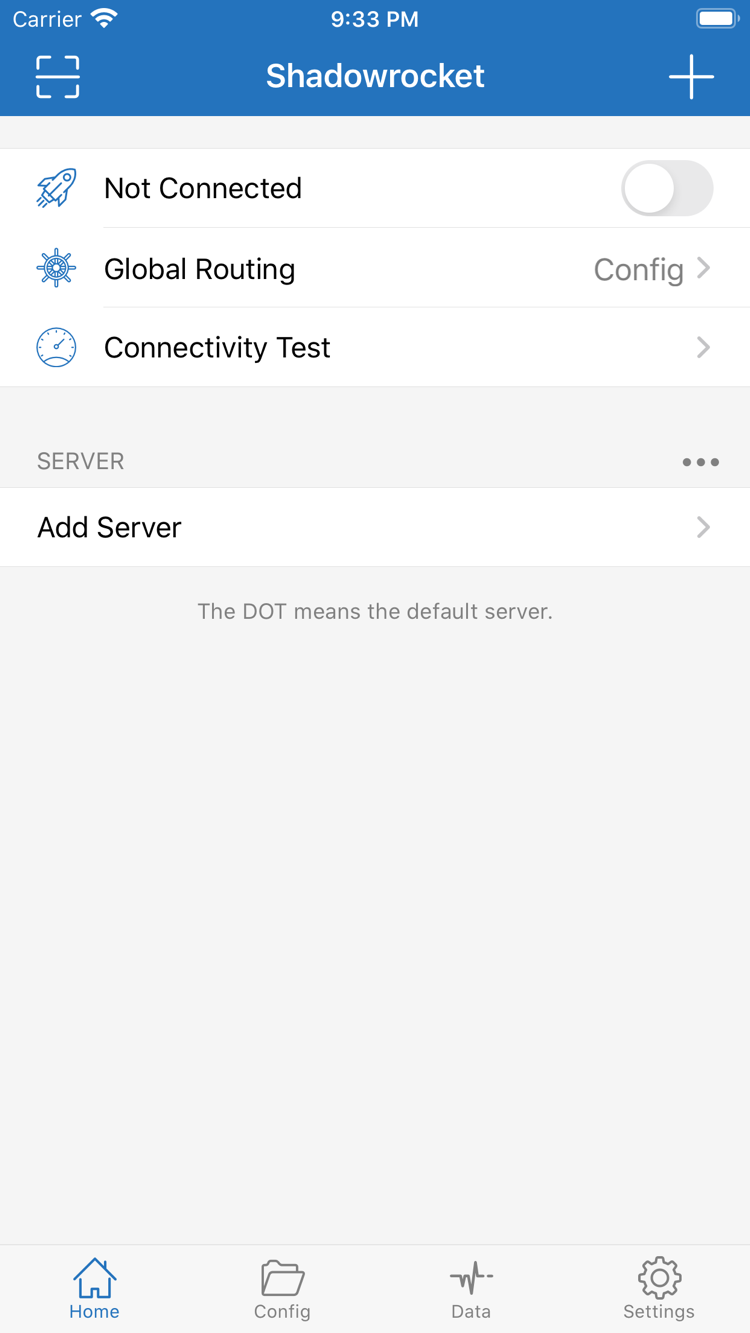
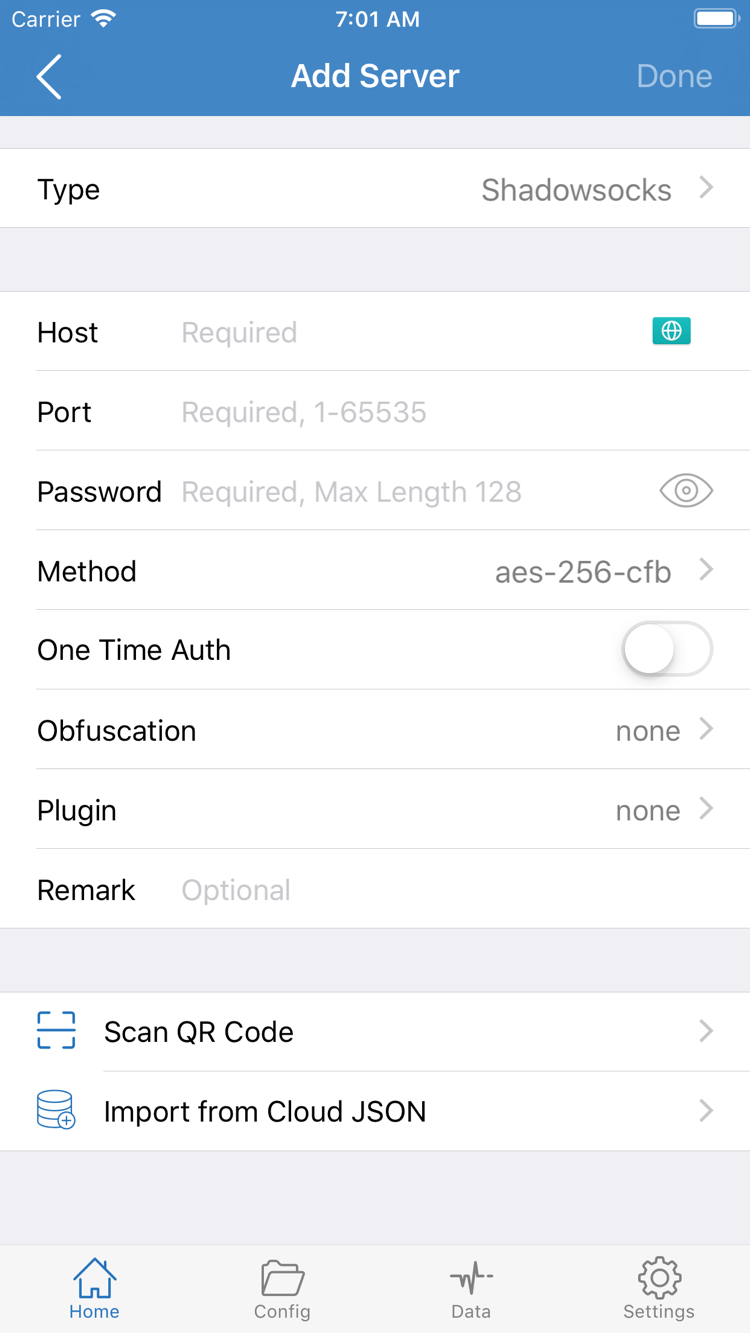
The two images alongside this text are official screenshots uploaded by the developer to the App Store. Use them to compare the Home and Add Server screens. They show example server entries; buying the app doesn't include the connection details shown. What appears in the list after installation depends on whether you've imported your own information.
Some layouts and fields may change in app updates. Verify the product using its App Store details. Don't assume that a server name, toggle state, or example shown in a screenshot must appear after installation.
iPhone: Purchase and first launch
Install Shadowrocket from the App Store, then import your own connection details. Opening the app and connecting for the first time are separate steps.
On your iPhone, tap the App Store button at the top of this page. Verify the listing, then check the price and compatibility. The current listing states iOS 13.0 or later; refer to the App Store for system requirements. Expand the compatibility details on your device before purchasing to confirm it can install the app. The App Store handles payment verification, and the confirmation screen shows the amount you'll be charged.
After purchasing, wait for the app to finish downloading to your Home Screen, then open Shadowrocket. If the icon still shows a waiting state or the progress hasn't finished, resolve the App Store download issue before changing connection settings in the app. Seeing a disconnected state on Home is normal at first. To connect, you'll need to check your existing subscription or server details separately.
System permission for the first connection
When you've entered connection details in the app and enable the connection, the system may ask to add a VPN configuration. This is Apple's permission step for managing network connections. Make sure the prompt was triggered by the Shadowrocket action you just took, then confirm if you want to proceed and complete any identity verification requested by the system. Granting permission doesn't confirm that your server details are correct or that all network requests will be routed as intended.
If you canceled the permission prompt, return to the app and check the connection status. Try connecting again and read the system prompt; don't toggle the connection repeatedly in quick succession. Check installation, permission, imported details, and access separately to identify where a problem occurs. When you're ready, follow the first connection and import tutorial, checking each interface label: Home, Add Server, and Global Routing.
iPad: Use the same purchase account
Shadowrocket works on both iPhone and iPad. First check the App Store purchase account, then look for the purchase in your history.
If you already bought Shadowrocket on iPhone, you can download it again from your iPad's App Store purchased items when signed in with the same Apple ID. You won't need to buy the app again. “Same account” means the account used for Media & Purchases; the same name displayed on both devices isn't enough to confirm this. If your iPad still shows a price, check the purchase history and current account before proceeding.
Refer to the App Store listing for iPadOS requirements. A larger screen changes the available layout, so lists, editing areas, and navigation may look different from the iPhone screenshots. Look for features by their interface labels, such as Home, Config, and Settings; button positions don't have to match the screenshots exactly. After importing your information, check the selected server and Global Routing.
Using the same purchase on both devices doesn't mean their in-app settings are the same. Check subscriptions, server details, and rule files on each device. If you've adjusted settings on your old device, keep a usable copy before checking them on the new one. A purchase record doesn't mean all settings have synced.
Notes on compatibility with other devices
The compatibility section of the same App Store listing also includes Mac, Apple TV, and Apple Vision. To use Shadowrocket on one of these devices, open the same product page on that device and check compatibility, system requirements, and purchase status. Refer to the App Store for universal purchase availability and system requirements. Don't assume it will work on another device just because it's installed on your iPhone.
New device, reinstall, and restore purchases
Find the original purchase first, then restore your own connection details. Handle the app and its configuration separately.
After changing devices or reinstalling, sign in to the App Store with the Apple ID used to buy Shadowrocket. Go to Account → Purchased, find Shadowrocket, and download it again. You won't be charged again. Depending on the system version, the purchase list may appear under Apps or My Apps. Look for the apps associated with that account instead of repeatedly searching the storefront home page.
- Check the account: Confirm that Media & Purchases uses the Apple ID from the original purchase. If needed, check your purchase history.
- Find the app: Search for Shadowrocket in Purchased, then verify the developer and app ID.
- Restore the app: Tap the download icon and wait for installation to finish. Then open the app and confirm you can reach Home.
- Check your connection details: Import your own subscription or server information, review the configuration and current selection, then test the connection.
If the page shows a price instead of a download icon, don't confirm another payment yet. Check that you're using the right purchase account, the original purchase was completed, the app appears in that account's purchase history, and the app is available in the current storefront. The product page button is a useful clue, but your purchase history is key to finding the original transaction.
Reinstalling restores your access to the app, but doesn't guarantee that your subscription, authentication details, or rules have also been restored. If your old device still works, check and keep a copy of your configuration before reviewing everything on the new device. For service addresses or authentication details, use information you already have; don't copy example entries from screenshots as connection settings.
How to check Family Sharing
Check the App Store listing and your Family Sharing purchase settings to see whether Family Sharing applies. If eligible, use the purchase-sharing options provided by the system. Family Sharing isn't the same as restoring a purchase on the same account: the former depends on family settings and app eligibility; the latter uses the original purchasing account's history.
For more on storefront regions, purchase history, and restoring purchases, see the App Store purchase guide. If the App Store reports an account or billing issue, address that message first. Reinstalling repeatedly usually won't change your purchasing account's status.
Price and one-time purchase
The reference price in the US storefront is $2.99. Other storefronts show local currency; check the App Store listing for the current price.
Shadowrocket is a paid commercial app with a one-time purchase; there is no monthly app purchase fee. Before paying, check the confirmation screen in your current storefront for the currency, final amount, and purchasing account. The US price shown here explains the purchase model and doesn't guarantee the price or exchange rate in other storefronts.
Features such as Subscribe import information you already have into the app; they aren't included with the app purchase. Check the validity, authentication method, and status of any existing service using your own service details. Assess app installation, connection success, and rule matching separately; one result doesn't confirm the others.
App updates are handled through the App Store. To review update details, open the product page's update history. To check whether your device can update, follow the App Store message on the device. This manual doesn't list fixed version numbers or update dates, so a single store entry isn't mistaken for a permanent installation requirement.
App Store purchase and installation FAQs
Check the stage where the problem occurs: start with the store and account, then check the device and in-app settings.
Why can't I find Shadowrocket in the App Store?
First check the country or region for the Apple ID used for Media & Purchases. Shadowrocket isn't available in the mainland China storefront, and search results depend on your account's storefront. Open the App Store product page linked here and check the store's message to see whether it's available in your region. Don't choose an app just because its name looks similar.
What if the product page opens but the download won't finish?
Note the exact App Store message, then check your purchase account, payment status, device compatibility, available storage, and network connection. If the message concerns billing or account status, address it in your App Store account settings first. Completing the download and connecting are separate steps.
Do I have to pay again when I get a new device?
Sign in with the Apple ID used for the original purchase, then find Shadowrocket under your App Store account's purchased items to download it again. You won't be charged again for the same purchase. If a price appears, check the account and purchase history first. After restoring the app, check and import your own subscription or server details.
I bought Shadowrocket on iPhone. Can I install it on iPad too?
The purchase works on both iPhone and iPad. On iPad, sign in to the App Store with the same Apple ID used for the purchase and download the app again from your purchased items. Check the App Store listing for system requirements. Purchase history and in-app settings are separate.
Can I install Shadowrocket on Mac, Apple TV, or Apple Vision?
The compatibility section of the same App Store listing includes Mac, Apple TV, and Apple Vision. Check the listing on the device you plan to use. Refer to the App Store for system requirements, device compatibility, and whether the purchase is universal.
The app opens in English. How do I follow the instructions?
This manual uses the app's original English interface labels. Start at Home to find Global Routing, then use Add Server with information you already have. See the tutorial for importing an existing subscription. An English interface doesn't verify authenticity; check the developer, official icon, and app ID.